Game Knowledge Base
Account Linking
Modern Warships supports cross-platform play, allowing you to use the same game account and keep your progress across mobile devices and PC, including Steam.
To avoid losing access when switching devices or platforms, we recommend linking an email address to your game account and setting a strong password.
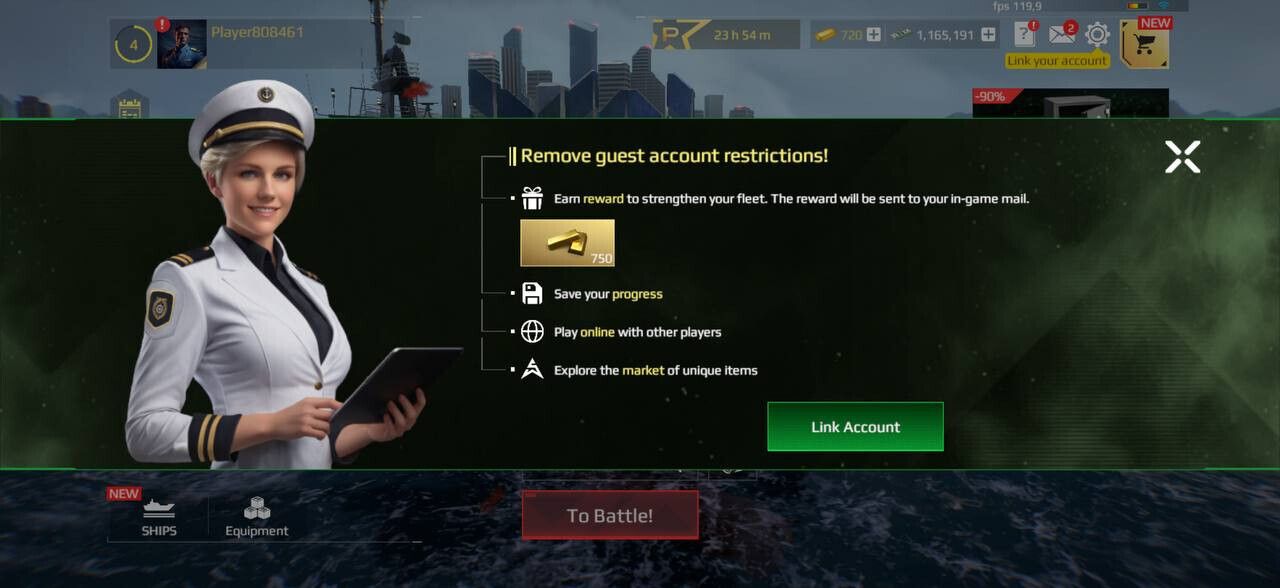
Important: If you are playing on a guest account, make sure to link it. Recovering access to an unlinked guest account may be significantly more difficult after changing devices, reinstalling the game, or under other circumstances.
Sign-In Methods
Mobile Version
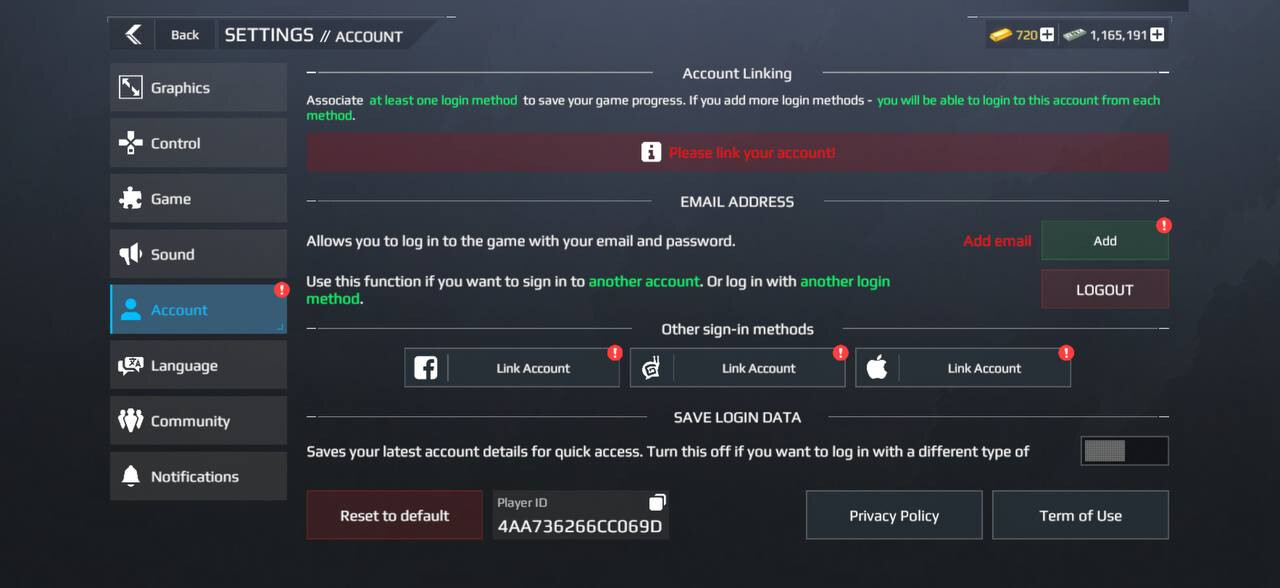
The mobile version of Modern Warships offers several sign-in methods, including an Artstorm account (email and password), Google Play, Apple ID, Facebook, Huawei, and other options available on your platform.
We recommend using an Artstorm account, as it provides a universal sign-in method supported across all game versions and platforms.
PC Version
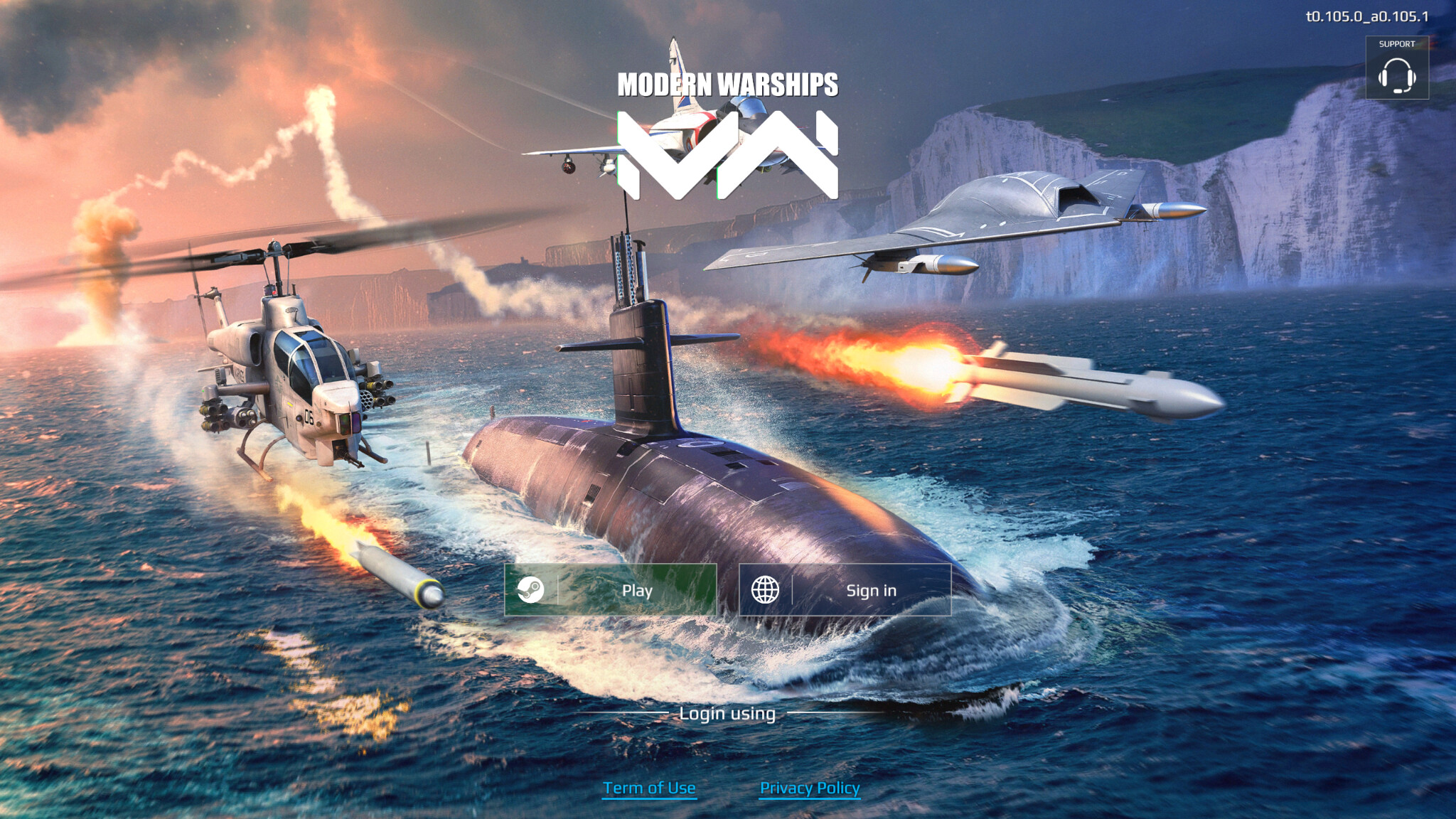
The PC version offers two main sign-in methods on the login screen:
- Artstorm — If you have already played Modern Warships, select "Log In with Artstorm" and enter the email address and password linked to your existing Modern Warships account.
- Gaijin — If you have not played the mobile version, select the Gaijin sign-in method. Clicking "Log In" will open the Gaijin authentication page.
If you already have game progress, make sure to select the sign-in method associated with your existing account.
Steam
The Steam version offers the following options:
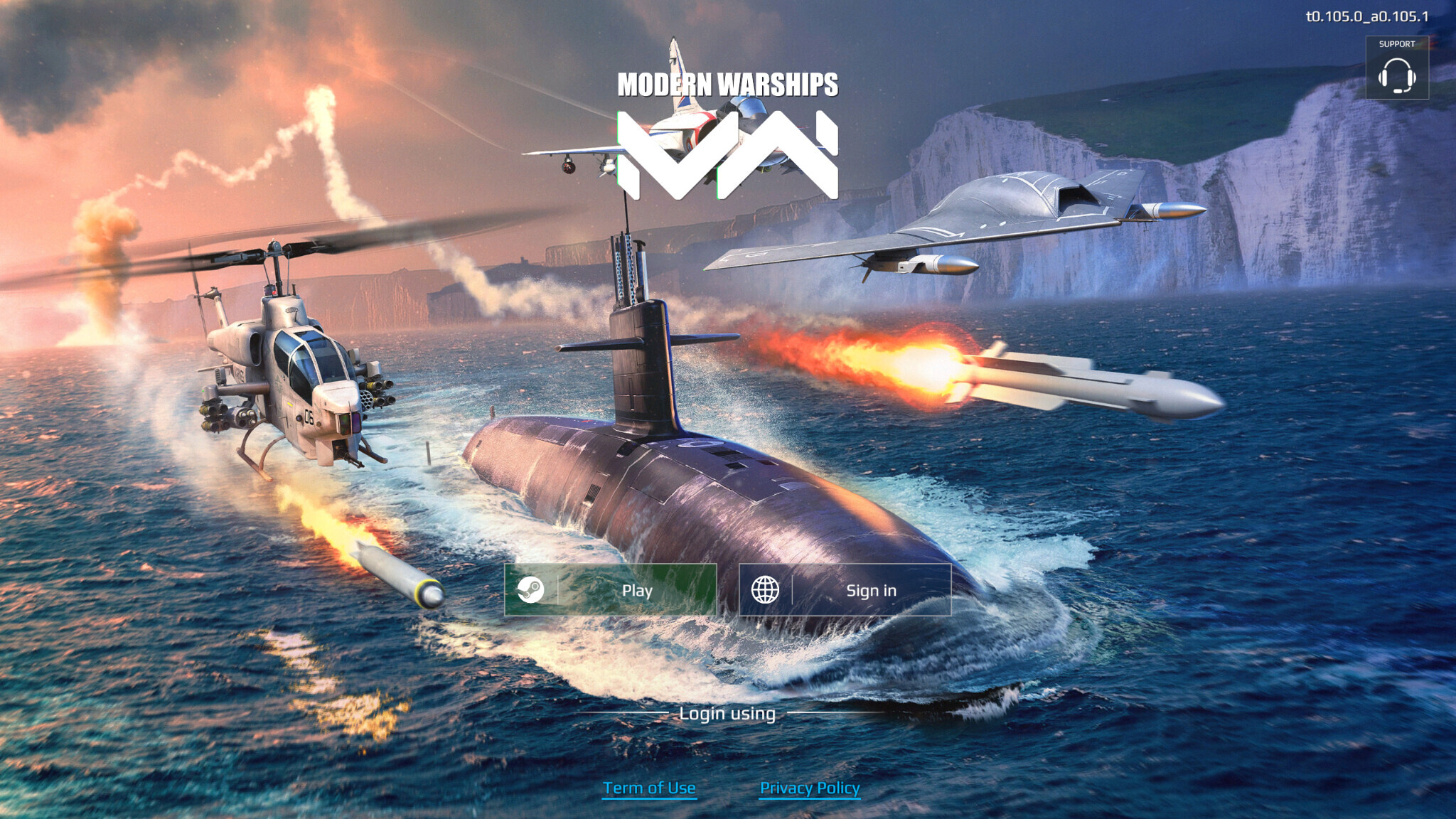
- [Play] — Signs you in through Steam. When launching the game for the first time without an existing account link, this option may create a new game account.
- [Log In] — Allows you to sign in to an existing Modern Warships account using its linked email address and password. Choose this option if you already have game progress and are launching the game through Steam for the first time.
If the standalone PC version of Modern Warships was previously installed on your computer and your login credentials were saved, the Steam version may automatically recognize your existing account after you click [Play].
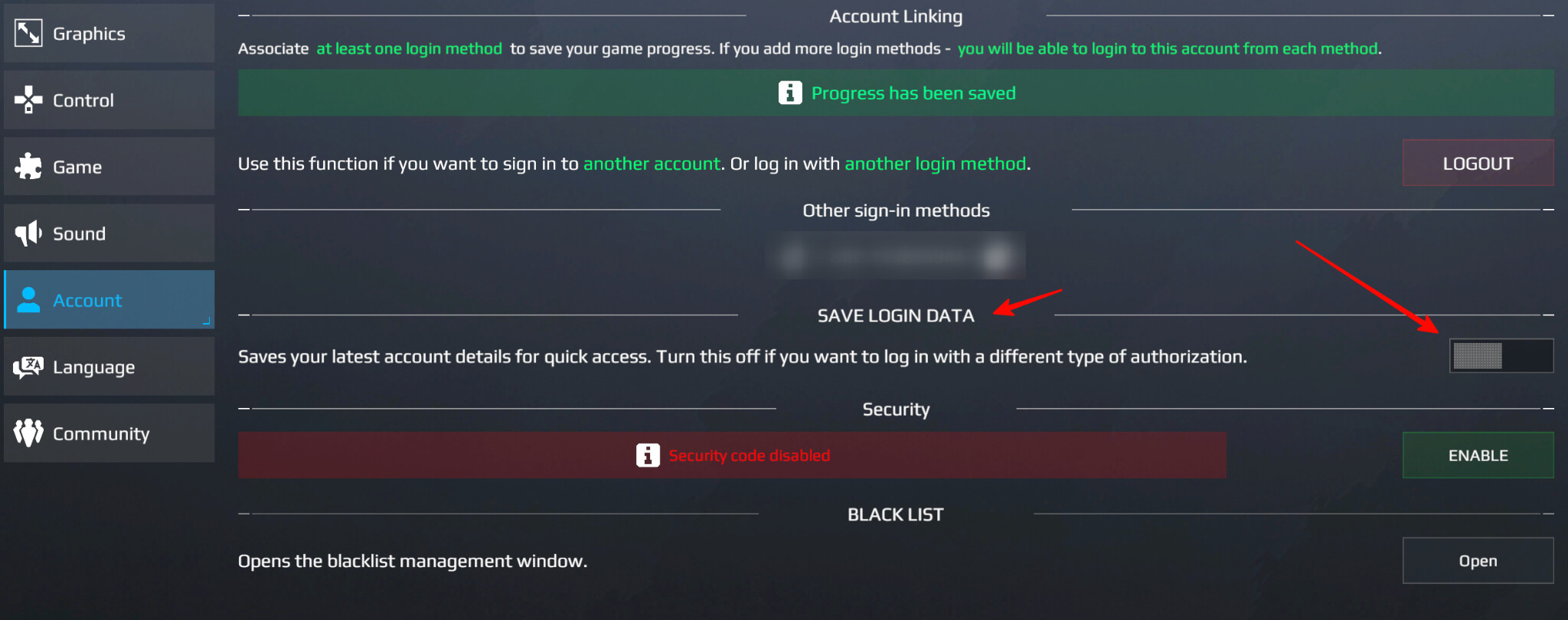
This may happen if either of the following options was enabled in the previous PC version:
Quick Login in the account settings.
Or Remember Password on the login screen.
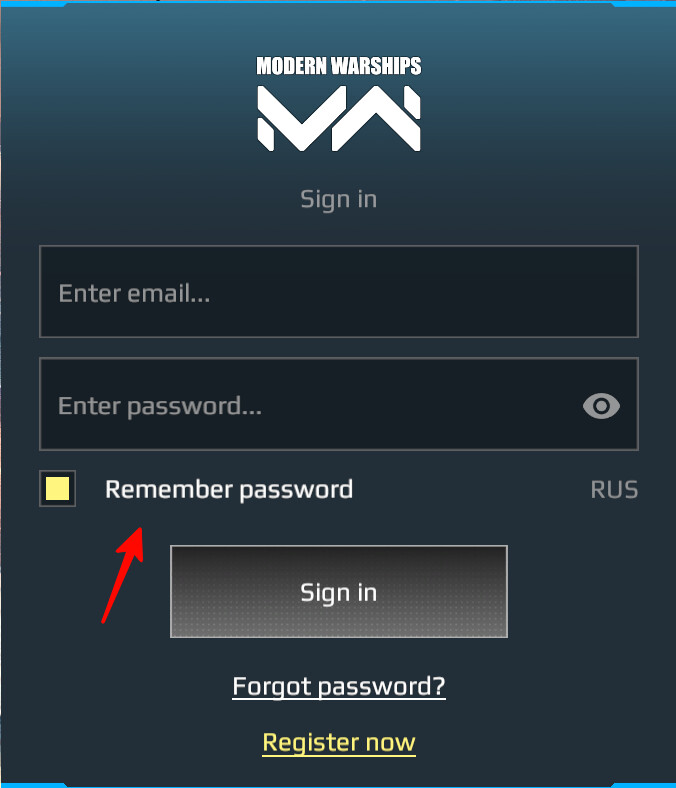
In this case, clicking [Play] may automatically load your existing Modern Warships account.
PC Version: Linking Your Mobile Progress
If You Have Already Played the Mobile Version
1. The easiest way to transfer your progress from mobile to PC
- Make sure an email address is linked to your mobile game account. You can link and verify your email address under Settings → Account.
- Launch the PC version and select "Log In with Artstorm" as your sign-in method.
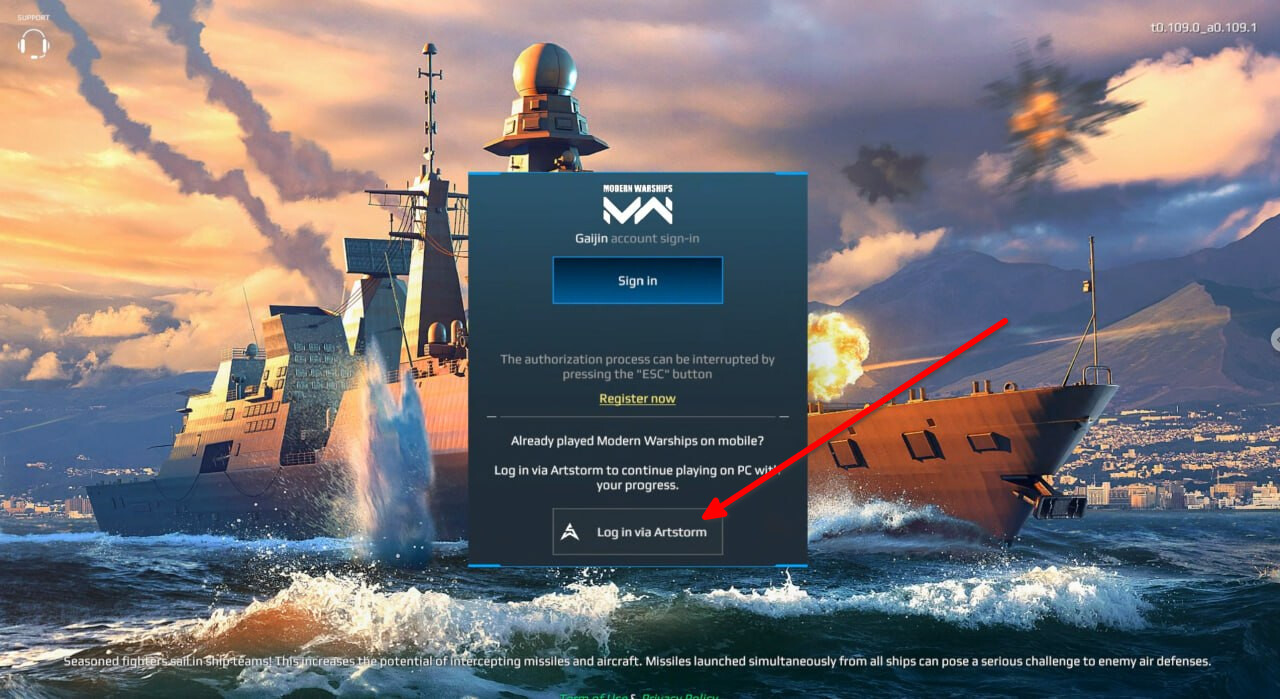
2. If you already have a Gaijin account and want to link it to your mobile account, or create a new account on PC
- Make sure an email address is linked to your mobile game account. Important: The email address used for your mobile account must be verified and must be different from the email address used for your Gaijin account. You can link and verify your email address under Settings → Account.
- Go to Mobile Settings → Account and select "Link Account" next to the Gaijin logo. A window will appear where you can enter a numeric code.
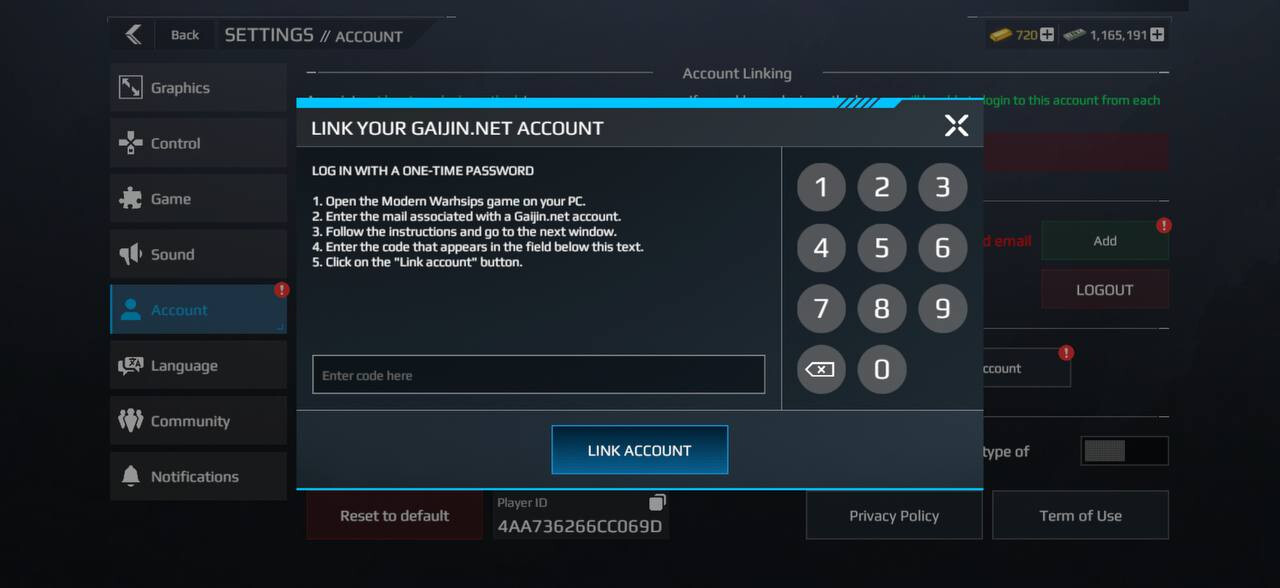
- Sign in to the PC version using the Gaijin sign-in method.
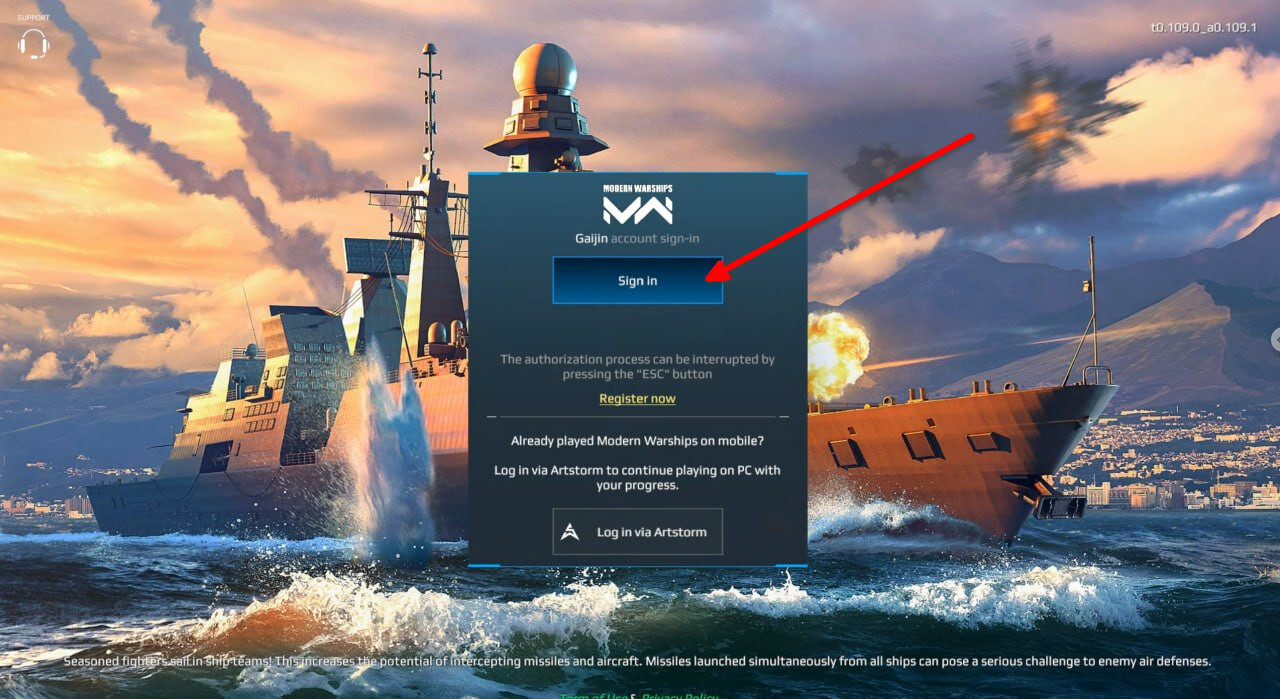
- After completing authentication on the website, an Account Manager window will appear in the game. Click "Yes".
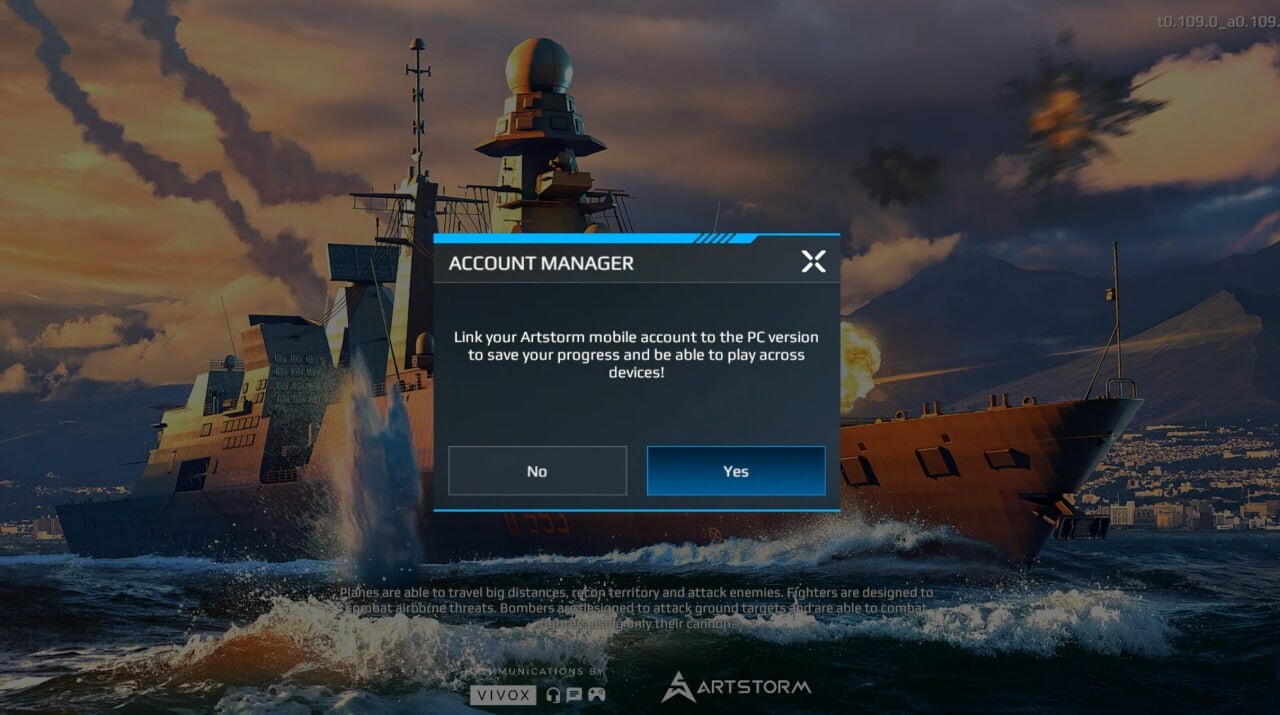
- A window displaying a code will appear. Enter this code in the mobile version to link your accounts.
If you do not have an account and are launching the PC version for the first time, select Gaijin as your sign-in method. You will need to create a Gaijin account or use an existing one to sign in.
______________________________________________________________
Important: If the email addresses used for your Gaijin account and mobile account are the same, you will encounter an "Account Not Found" error when attempting to log in to the game on PC. Please contact Gaijin Support to resolve this issue.
Linking Your Steam Account
If You Already Have an Account but Have Not Installed the Standalone PC Version
If you already have a Modern Warships account, but the standalone PC version has not been installed on your computer or your login credentials have not been saved, do not click [Play] as your first action.
Instead, select [Log In] on the main login screen and enter the email address and password of your existing Modern Warships account.
Your Modern Warships account must have an email address and password linked to it.
Once you sign in, this account will be linked to Steam and used as your account in the Steam version.
If You Want to Start with a New Account
If there are no saved Modern Warships account credentials on your computer and you click [Play], the game will create a new account linked to Steam.
This is a normal option for new players. However, if you already have progress on another account, please use [Log In] first.
If You Accidentally Clicked [Play]
If you already had a Modern Warships account but clicked [Play] first and a new account was created, you can still switch to your existing account.
Open the account settings, log out of the current account, then return to the login screen and select [Log In].
Enter the email address and password of your existing Modern Warships account.
The game will then ask you to choose which account you want to link to Steam. Select the account you want to continue playing with.
Please double-check your selection at this step, especially if your existing account already contains game progress, ships, items, or purchases.